Getting Started with Auto Ad Name Tagging in MagicBrief
Last updated: July 28, 2025
Turn your ad naming convention into a superpower ⚡🔮
MagicBrief's Auto Ad Name Tagging brings structure, speed, and clarity to your creative testing workflow. Whether you're a stickler for naming conventions or working with a messy real-world setup, this feature helps you analyze creative performance by theme, creator, funnel stage, and more!
Looking for our Ad Name Generator template? Check it out here 👈
The Magic behind Auto-Tagging ✨
This is a great way to evaluate the creative diversity inside your account to make sure you're not just repeating wins, but expanding your testing range!
Auto-tagging in MagicBrief supports two primary approaches:
Delimited Tagging – for clean, consistent naming formats.
Phrase Tagging – for messy, flexible, or compound naming.
Once your tags are in place, you can analyze creative performance by variables like creator, angle, funnel stage, or concept, without any manual tagging.
1. Delimited Tagging: Structured Tagging from Your Ad Names
If your ad names follow a consistent format like:
Concept_Creator_Funnel_Angle
Example: UGC_Merlin_TOFU_Quality
MagicBrief will auto-tag each segment into its relevant category:
UGC → Concept
Merlin → Creator
TOFU → Funnel
Quality → Angle
Benefits:
✔ No manual tagging
✔ Consistent, structured data
✔ Faster analysis in Compare reports
How to Set It Up
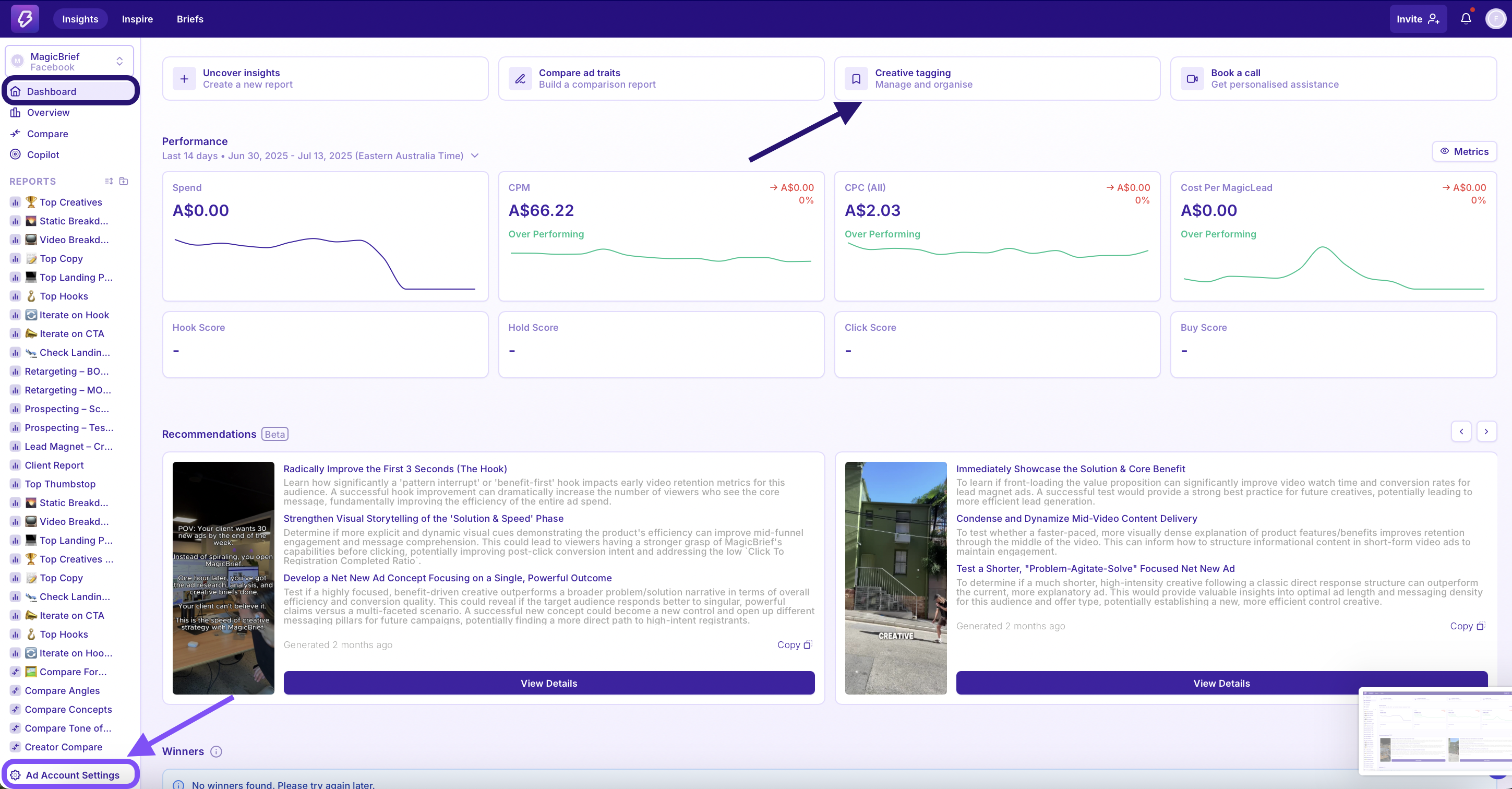
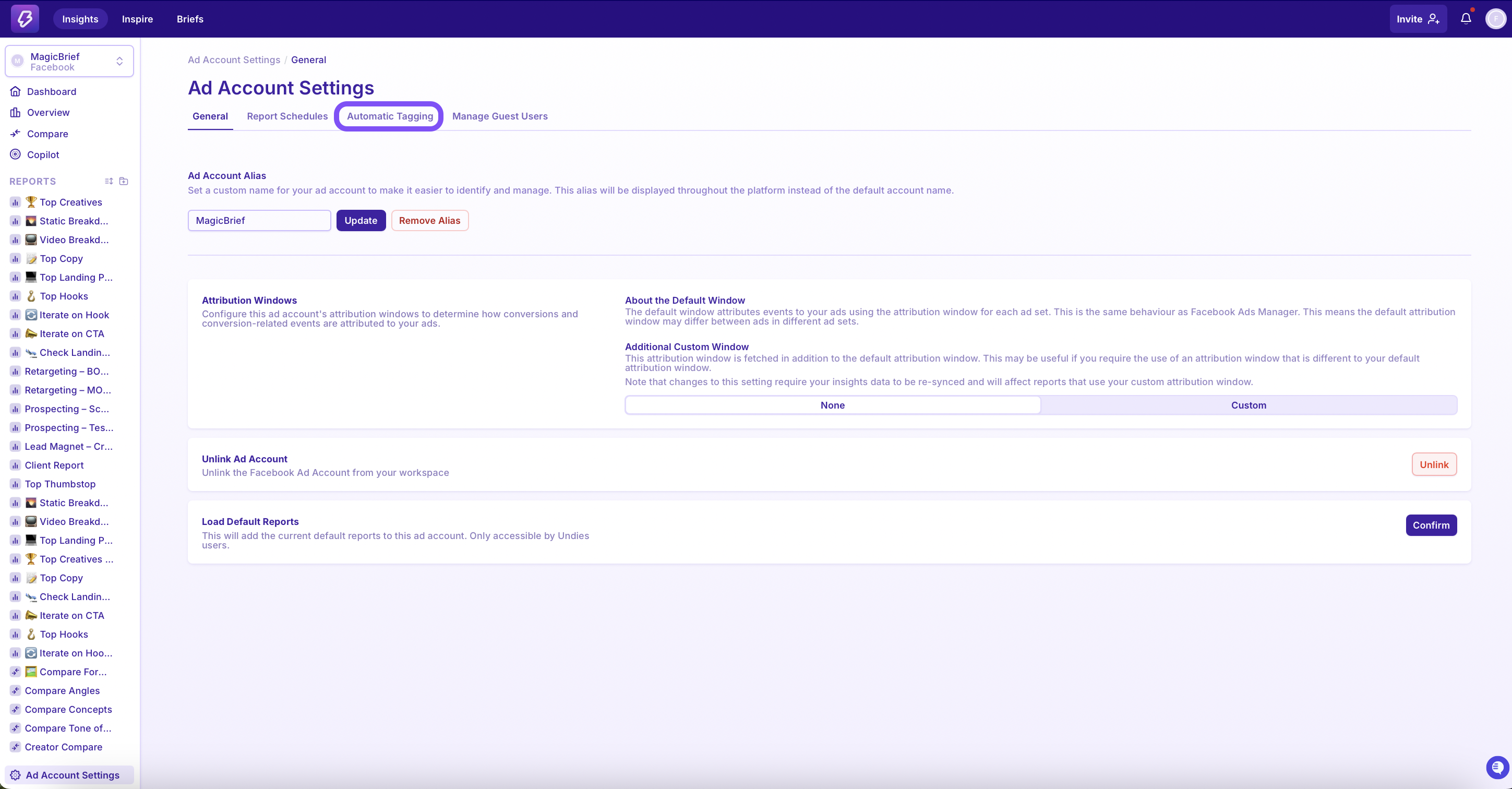
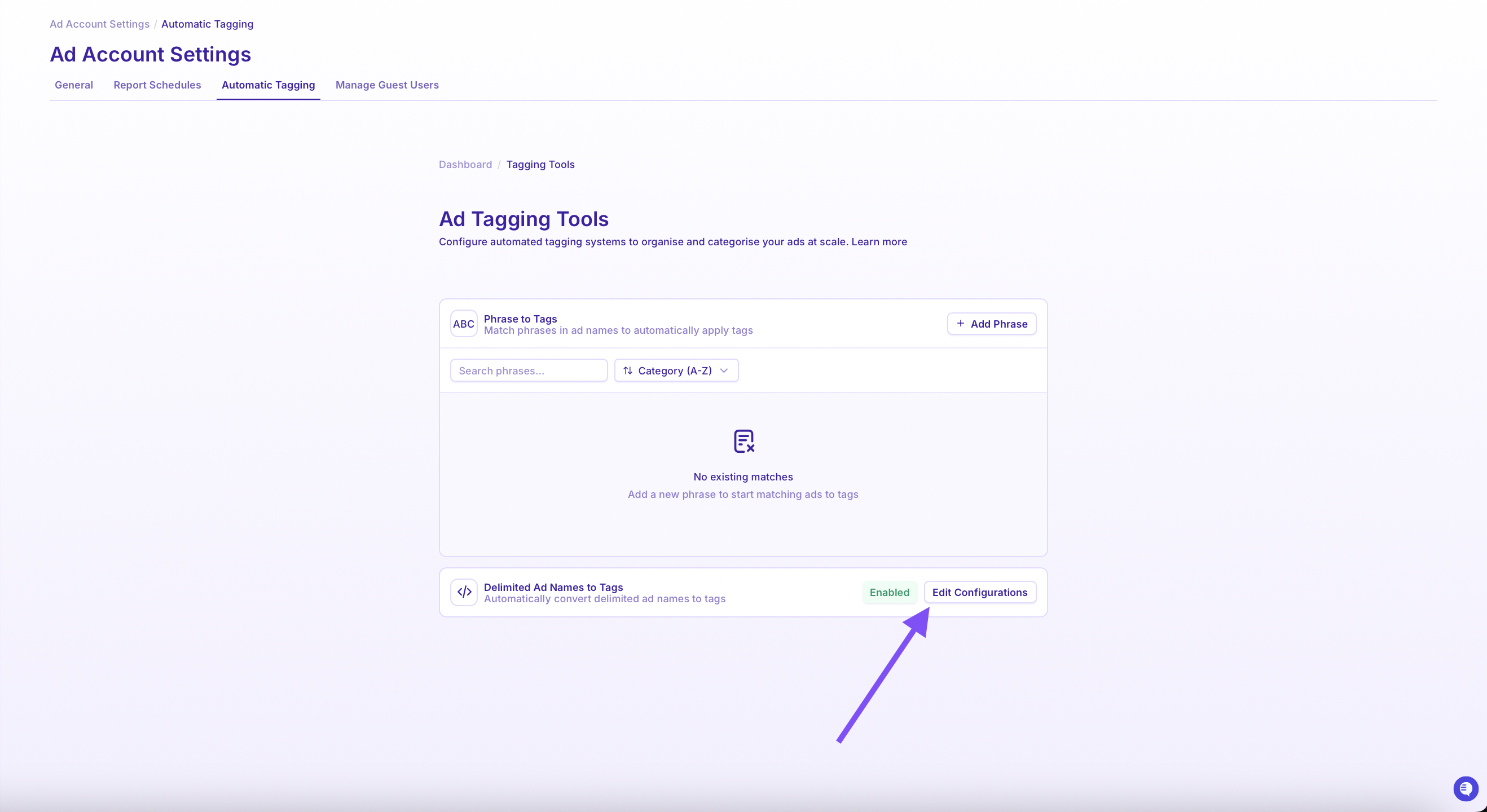
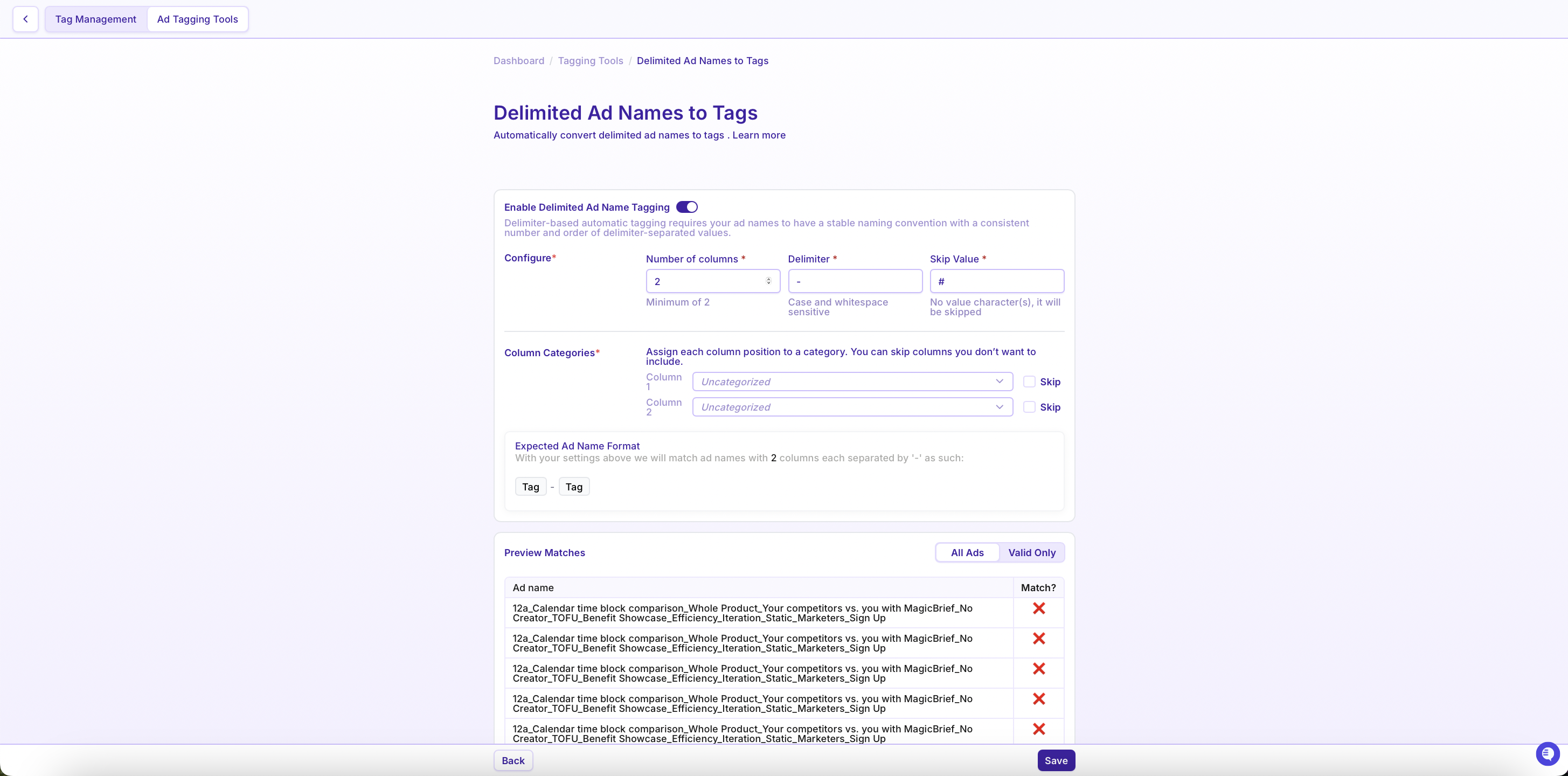
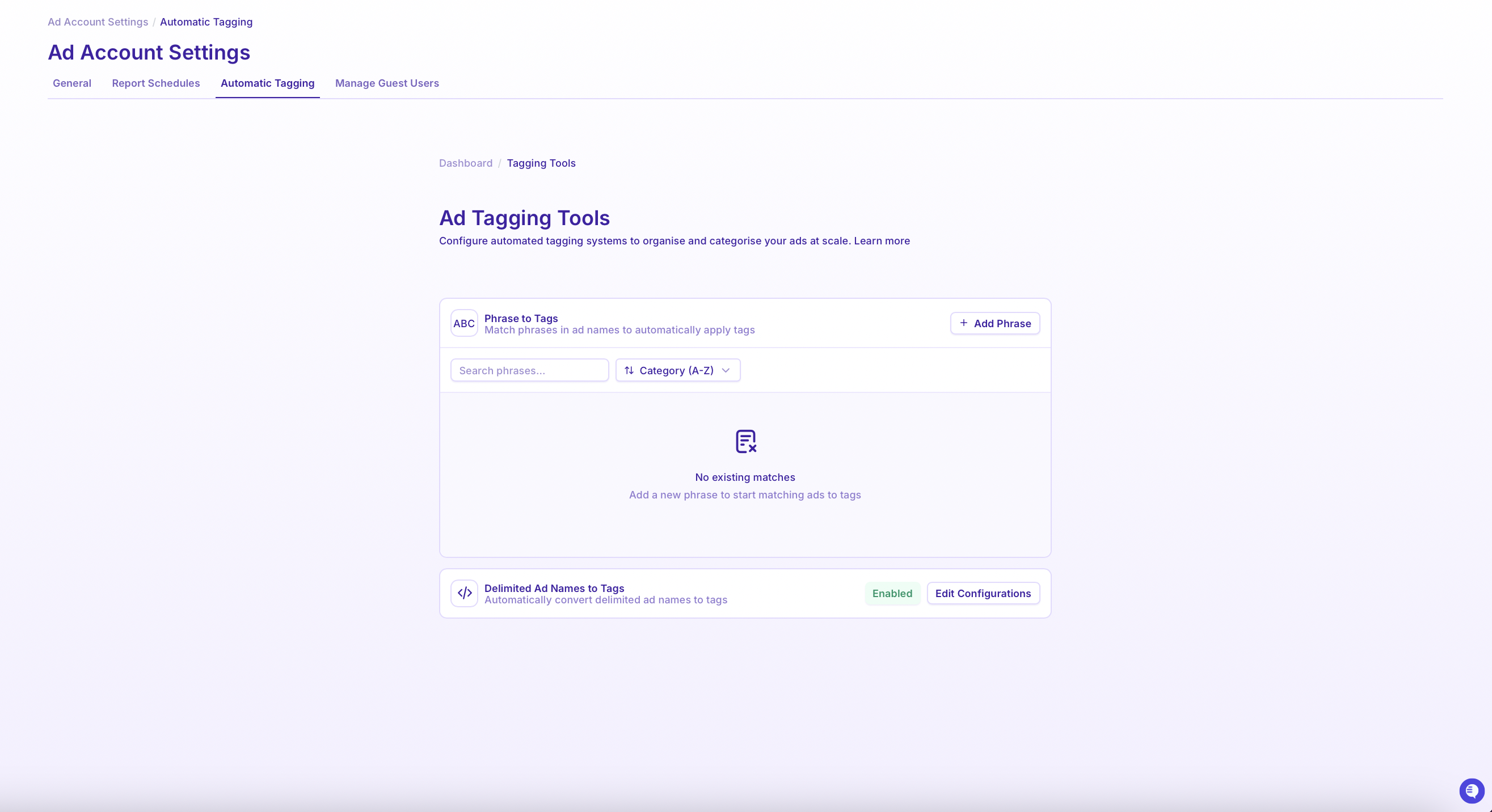
Go to Ad Account Settings → select Automatic Tagging → click on Delimited Ad Names to Tags, then click "Edit Configurations"
Set the column count to match your naming format
Choose your delimiter (commonly
_,|, or-)Assign each column to a tag category (e.g. Concept, Funnel)
Use Skip for any columns (like unique IDs) you don’t want tagged
Use Valid Only tab to preview matched ads and validate your setup
Hit "save"
Pro tip: If you update tag categories after saving, you’ll need to delete previously generated tags in the Creative Tagging dashboard to avoid duplication.
2. Phrase Tagging: Flexible Tagging for Real-World Naming
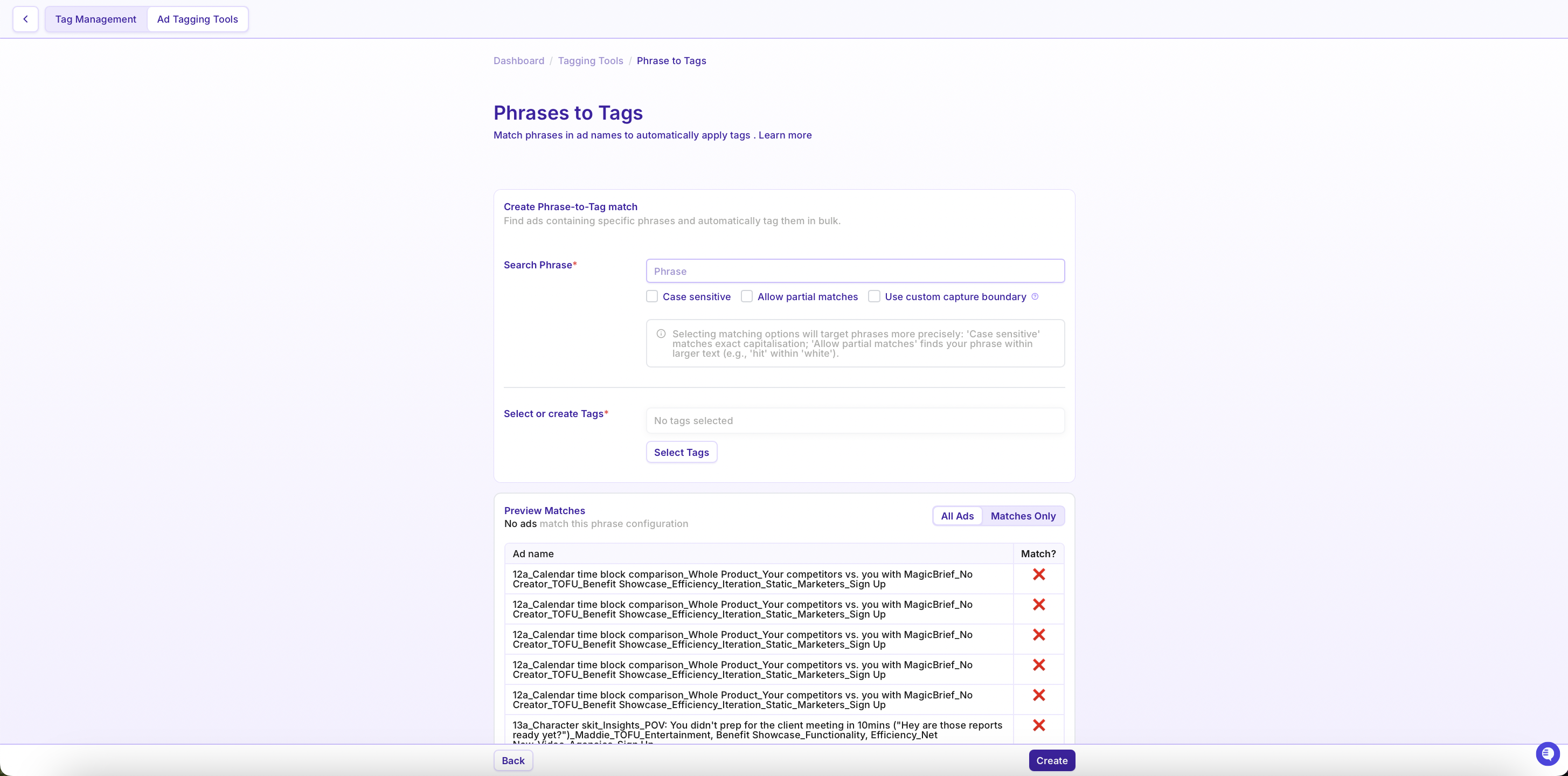
When naming isn’t perfect, Phrase Tagging lets you tag ads based on specific words or phrases—no matter where they appear in the ad name.
Perfect for:
Inconsistent naming across creators, concepts, or offers
Flexible campaign names with multiple variables (e.g., multiple angles in one name)
Avoiding overly long or combined tags like "Functionality,Efficiency"
Example:
Ad Name: UGC_Maddie,Merlin_TOFU_Explainer,Unboxing
→ Tags applied:
- Creator: Maddie, Merlin
- Theme: Explainer, Unboxing
Setup Steps:
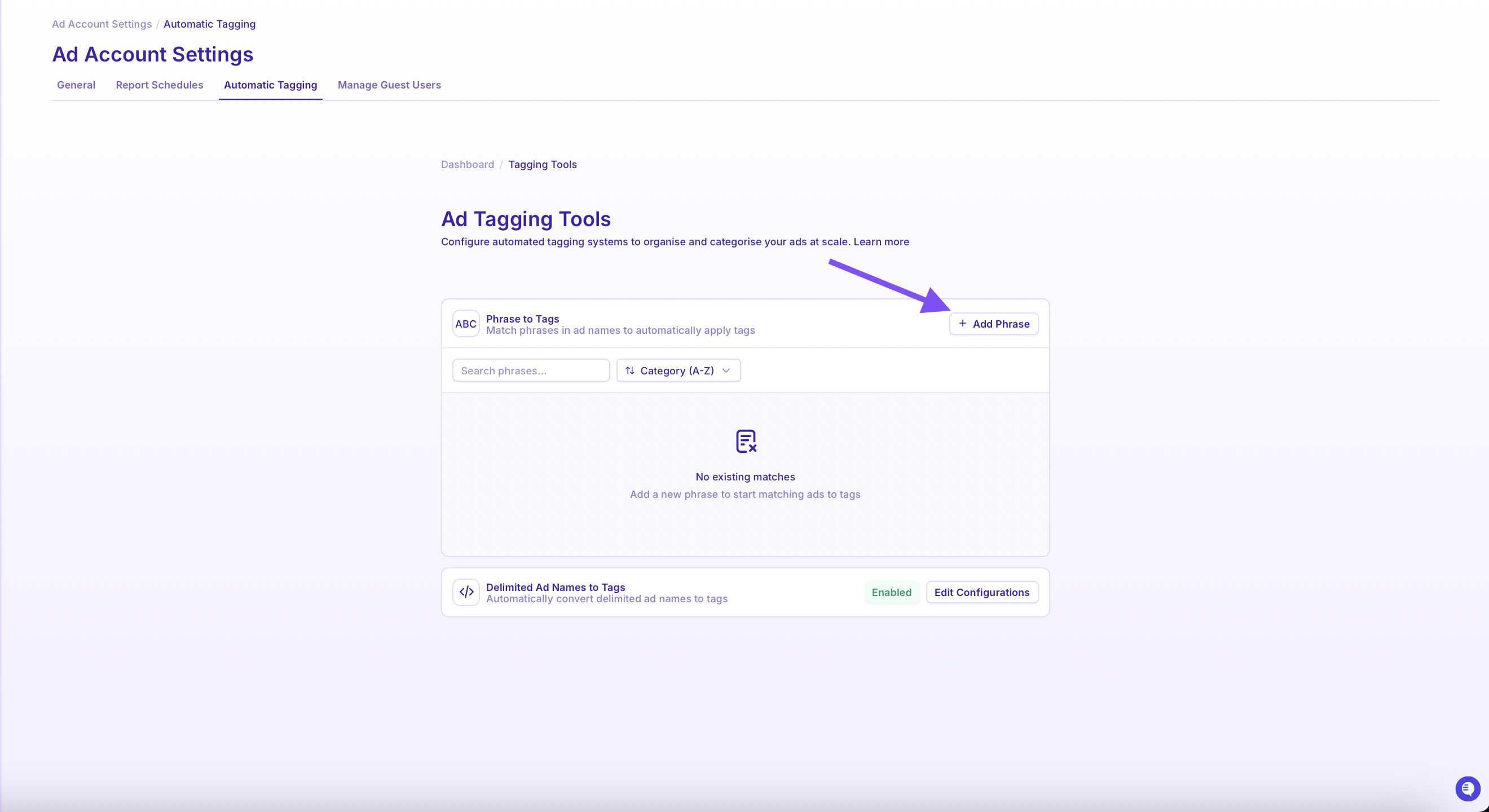
Go to Ad Account Settings → Automatic Tagging → Phrase to Tags.
Click + Add Phrase.
Enter the word/phrase to detect (e.g., “Efficiency”).
Choose the tag category (e.g., Angle) and tag name (e.g., Efficiency).
Use Matches Only to preview what ads would get tagged.
You can create multiple phrase rules to cover recurring elements across your naming.
🌟 Multi-Angle Support
If a single ad name contains multiple angles like "Functionality,Efficiency", Delimited Tagging would create one combined tag. Instead, use Phrase Tagging to assign both Functionality and Efficiency as separate tags.
Bonus: Custom Capture Boundaries
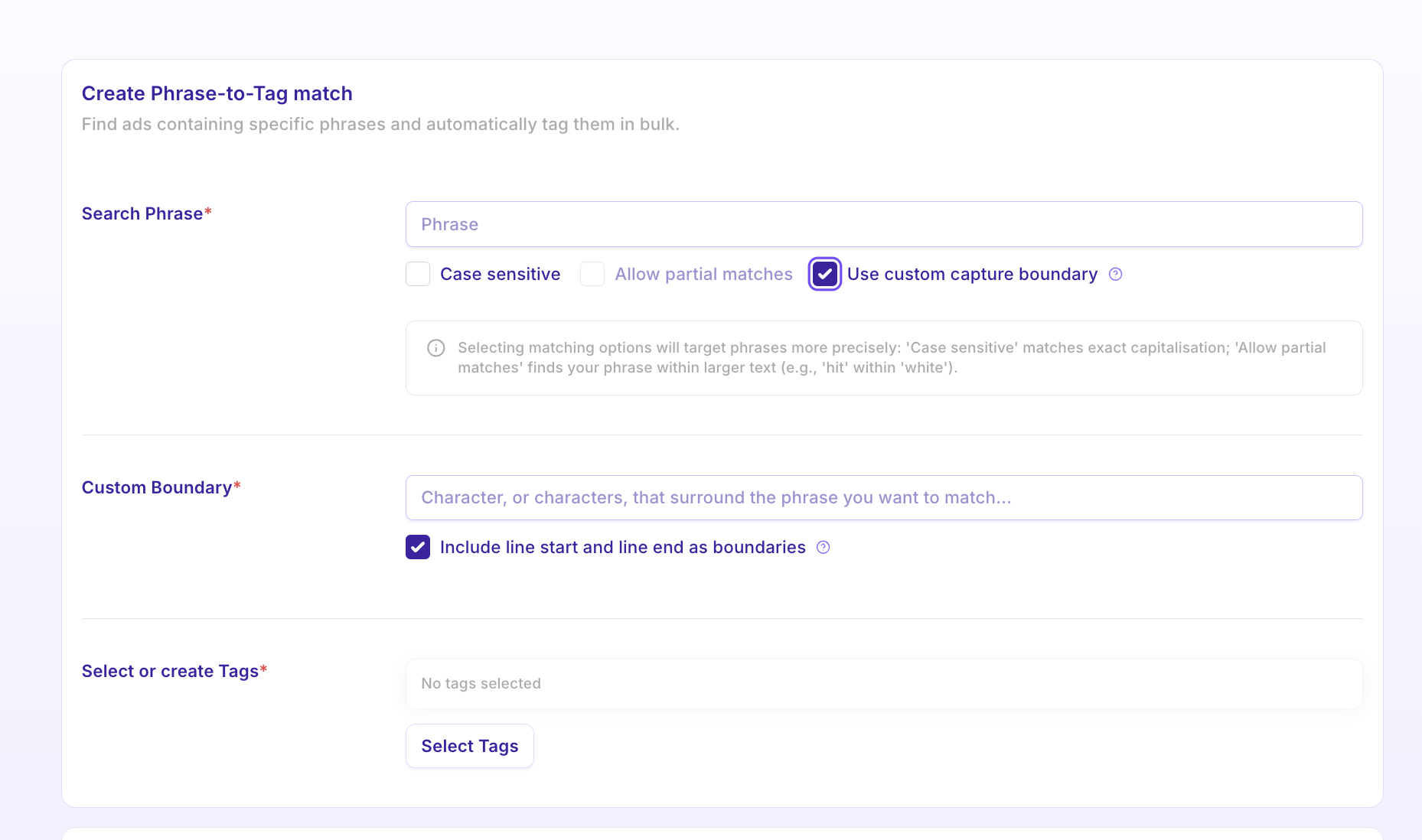
Want even more control? Use Custom Capture Boundaries to make sure phrases only trigger tags when surrounded by specific characters such as "-"
Example:
Phrase = cat
Boundary = -maddiecatking_video → won’t be taggedmaddie-cat-king_video → ✅ will be tagged
This helps prevent accidental or partial matches when your naming is extra noisy.
3. Analyze It All: Quick Compare
Once tagging is in place, head to Compare to visualize how each variable performs.
You can:
Analyze performance by Concept, Funnel, Creator, Angle, etc.
Quickly identify creative winners
Spot gaps or overuse in your creative mix
Pro tip: Use tags to audit your creative diversity. Are you over-indexing on a certain creator or funnel stage? Quick Compare helps you zoom out and see the bigger picture.
4. Free Ad Name Generator
To help you get started, we created a plug-and-play naming tool: 🔗 Ad Name Generator Spreadsheet
How it works:
Input values (e.g., concepts, creators, angles, offers)
The sheet auto-generates delimited ad names
Copy/paste directly into Meta or other platforms
Supports complex testing setups:
Creator A/B testing (e.g., Maddie vs. Merlin)
Offer variations (Net New vs. Iteration)
Persona and CTA combinations
Assigning version codes (e.g., 13A, 13B) for easy reference
Once Auto Ad Name Tagging is set up, here’s how you can use the tags effectively in your MagicBrief reports! 👇
Using Tags in Compare Reports
Go to Compare Tab
Navigate to the Compare section in Insights.Select a Tag Category to Compare By
You’ll see your tag categories (like Creator, Funnel, Concept, Angle) appear as filterable options at the top.Choose a Category and Tags
Click into a category (e.g., Funnel), then select the tags (e.g., TOFU, MOFU, BOFU) you want to analyze.View Performance Side-by-Side
MagicBrief will automatically group and display ad performance by tag:Compare metrics like CTR, CPA, ROAS across different creators or angles.
Identify trends — e.g., whether TOFU angles are outperforming MOFU ones.
Spot Gaps or Redundancies
Useful for creative audits: Are you over-indexing on one theme? Underutilizing certain personas or formats?
Using Tags in Overview Reports
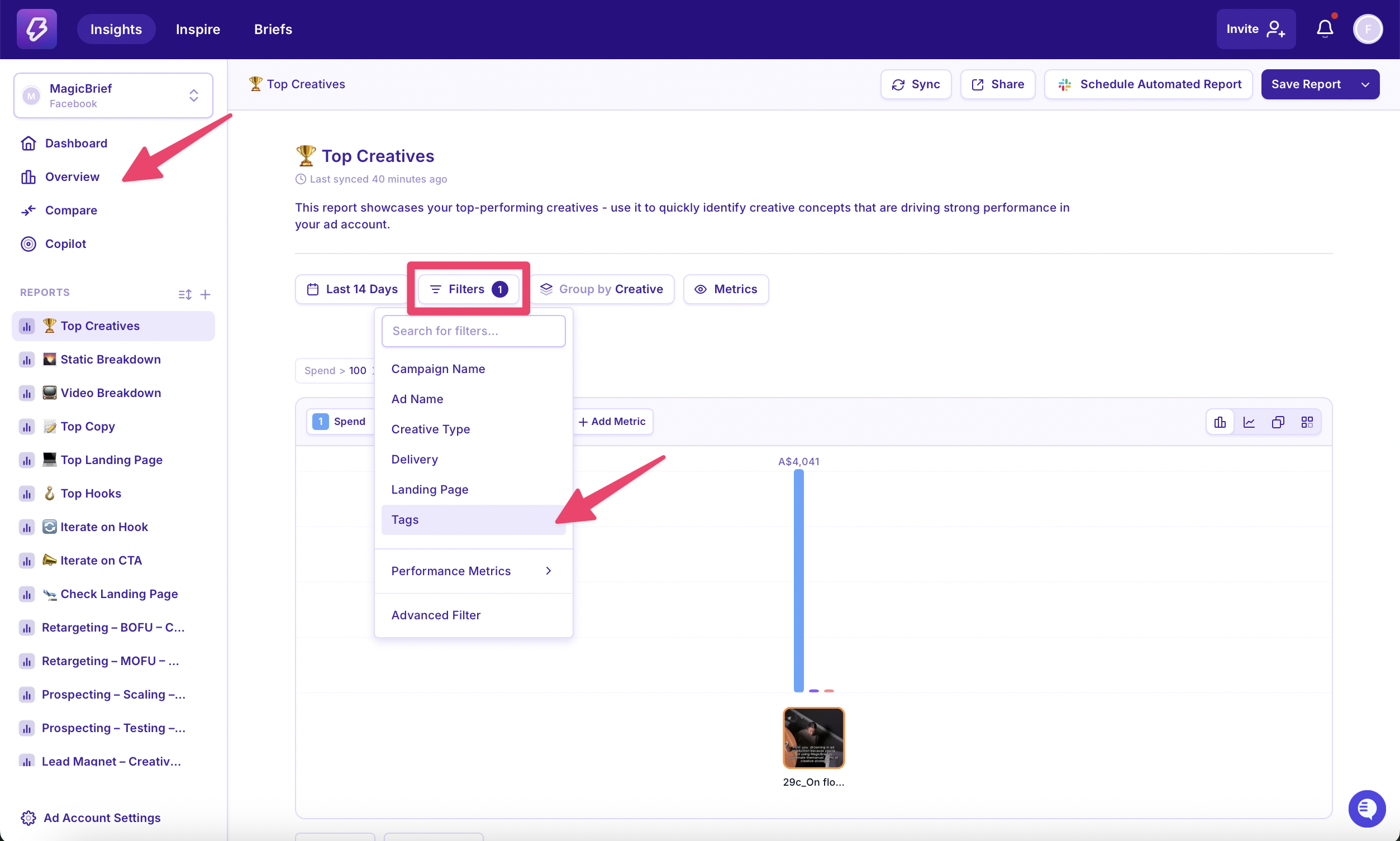
Create or Open an Overview Report
In the Overview section, either create a new report or open an existing one.Filter by Tag
Use the filters to narrow by Ad Tag → then choose tag categories like Concept, Angle, or Creator.This allows you to see, for each ad row:
What tags are applied
How performance varies by tag within the table view
Group or Segment by Tags
Instead of grouping by campaign or ad name, group by tag (e.g., Angle). This shows how each theme or variable performs across the board.
Pro Tip: Use Tags in Time Series Graphs: Spot performance trends by tag over time.
Wrapping Up
Auto Ad Name Tagging isn’t just about organization, it’s a smarter way to analyze creative strategy. Set it up once and unlock:
Clearer testing results
Easier reporting
More intentional creative iteration
Need help getting started? Just reach out. We’re happy to walk you through setup or troubleshoot naming quirks!
Happy tagging! 🪄