Using Guest Mode
Last updated: April 15, 2025
With Guest Mode, you can grant limited-access visibility to specific ad accounts in Insights —without exposing other ad accounts or internal workflows. It’s a purpose-built way to collaborate with clients and external parties on Insights, without compromising control and needing to add them to your entire workspace.
How to set up a Guest User:
In workspace settings, find the Guest Users tab in the sidebar - this has a magic invite link that invites users as a "Guest User".
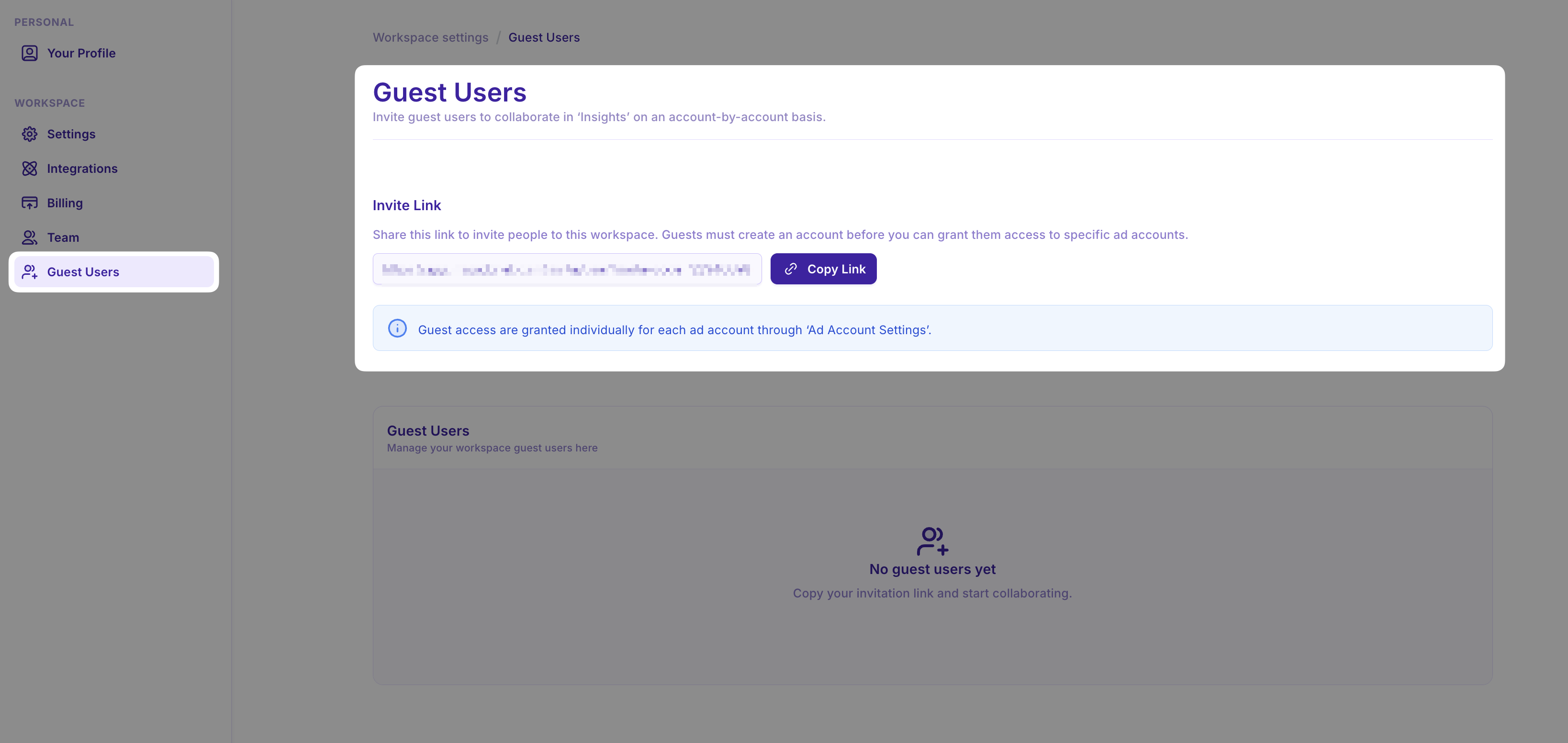
Once you have sent the link to your guest and they have used it to sign up, they will land in an empty view. You can now add them to an ad account.
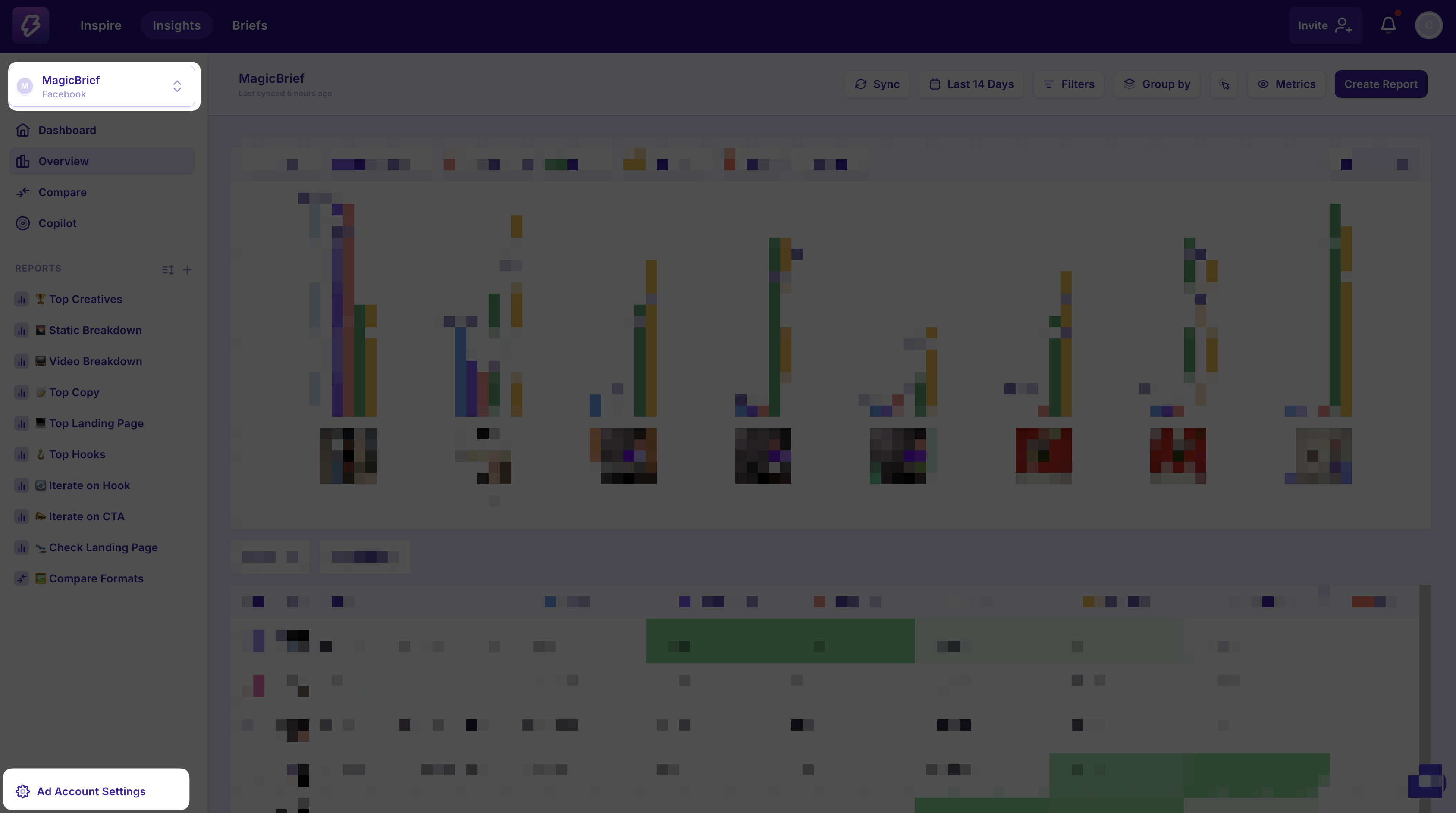
In Insights, select the ad account you want to add the guest to, then click on 'Ad Account Settings' at the bottom left.
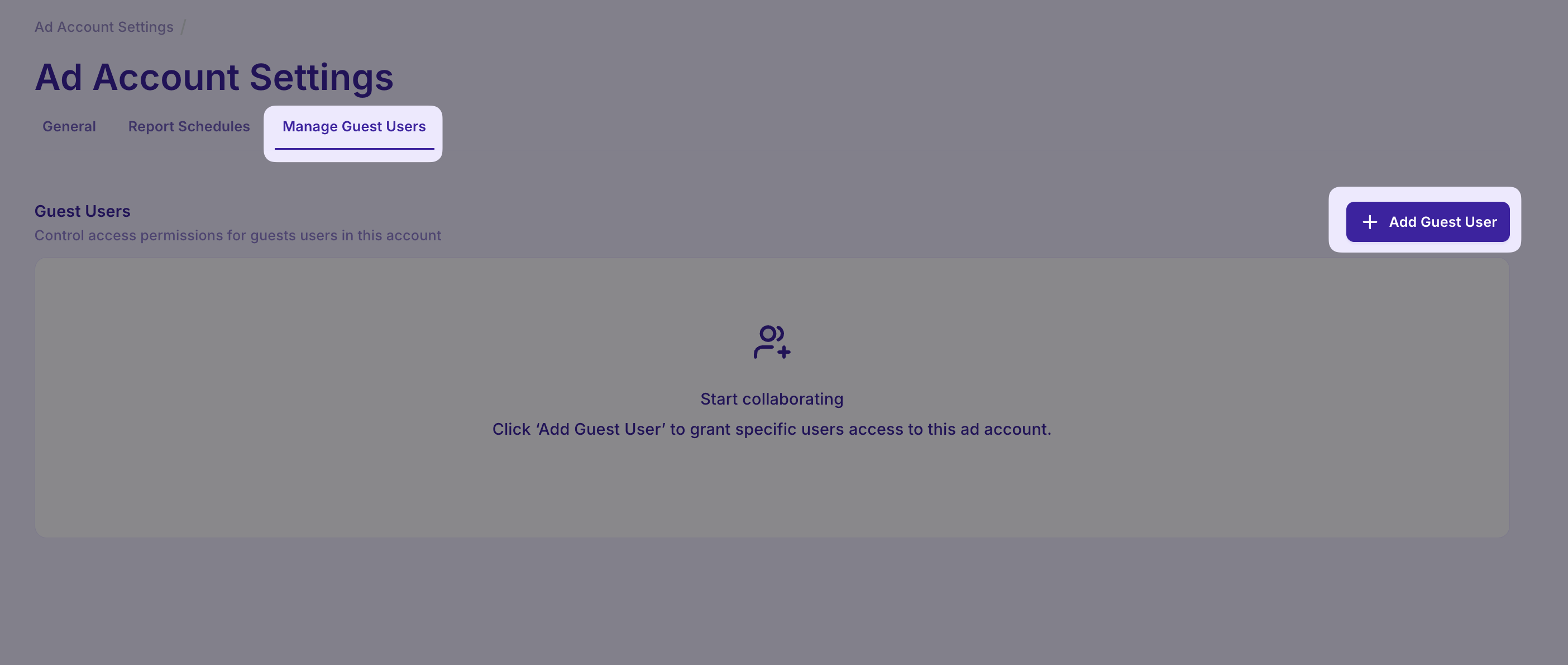
Tab across to 'Manage Guest Users' and add them to the account - they will then have access on a per ad account basis.