How Grouping Works in MagicBrief
Last updated: May 28, 2025
MagicBrief gives you flexible ways to analyze your ads by grouping performance based on what matters most. Here’s how each grouping option works so you can make the most of your reporting.
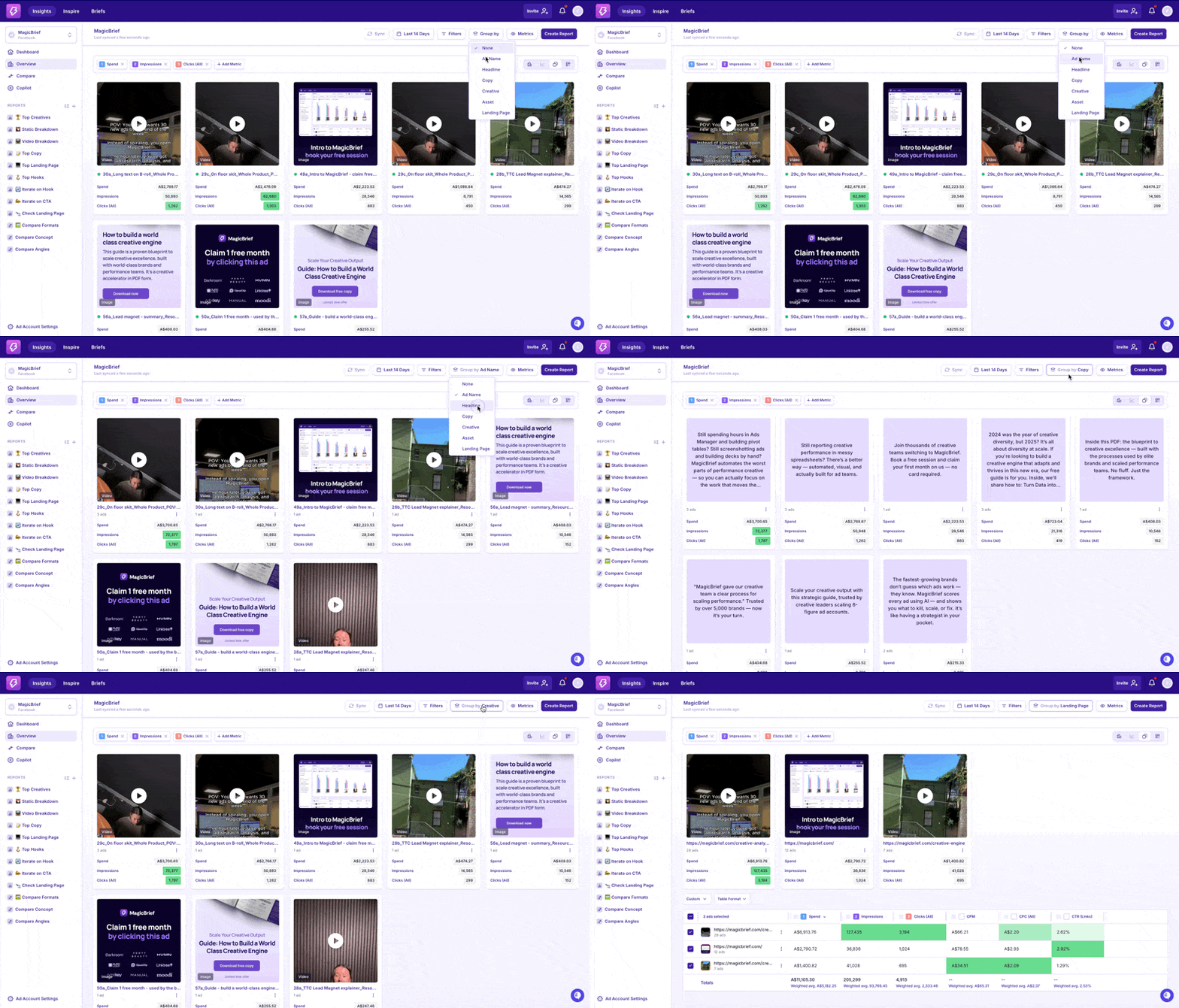
Group by Ad Name
Groups ads based on the Ad Name from Ads Manager.
Use this when:
You have a consistent naming convention and want to group performance based on how you’ve labeled ads internally — often by variant, test theme, or creative angle.
Why it's helpful:
It brings together performance data for ads with the same name, even if the creative or copy is slightly different.
Great for teams who organize tests around naming (e.g. “UGC_Variant_1” or “Hook_3_Test”).
Group by Creative
When you select “Group by Creative”, MagicBrief bundles all ads that share the same Creative ID — that’s Meta’s internal identifier for the visual asset (image or video) being used.
How it works:
If multiple ads use the same creative (and you duplicated the ad in Ads Manager), they’ll all share the same Creative ID. We’ll group those together in your report so you can get a unified view of how that visual is performing across placements, ad sets, and campaigns.
If you recreated an ad from scratch — even if it looks identical — Meta assigns it a new Creative ID, so it’ll appear separately in your report.
If you’re running slightly different crops or aspect ratios of the same asset (like for Story vs. Feed), we still group them together as long as the Creative ID matches.
Dynamic creatives are the exception. Since Meta dynamically generates combinations of copy and visuals, each version gets its own Creative ID — so these will appear as separate entries in the report.
Pro tip: To keep performance data grouped together in MagicBrief, always duplicate existing ads in Ads Manager when reusing a creative.
Group by Copy
When you choose “Group by Copy,” we group ads based on the primary text (aka the body copy) used in the ad — regardless of what visual or headline it's paired with.
Why this is helpful:
It lets you see which copy variations are driving the best results, even across different creatives or formats.
If your team is testing multiple messages or hooks with the same creative, this view helps isolate which messagingis actually converting.
Group by Headline
Selecting “Group by Headline” groups ads by the headline text — the bold line that appears below the ad creative.
Use this view to:
Compare the performance of different headline variations across creatives and placements.
Test which calls-to-action, product names, or benefit-driven headlines are pulling their weight.
Group by Landing Page
Groups ads by the URL they’re sending traffic to.
Use this when:
You’re testing different landing pages or want to understand which destination is converting best across various ad formats.
Pro tip: If you're running A/B tests on landing pages or using custom UTMs, this view helps you track which page is doing the heavy lifting — without digging into Ads Manager.
TL;DR
Group ByWhat It GroupsBest For
None (Default) | Individual ad IDs | Granular performance view — each row is a unique ad |
Ad Name | Meta Ad Name | Useful if your team uses consistent naming conventions to organize variants |
Creative | Creative ID (image/video asset) | Understanding how a specific visual performs across campaigns |
Copy | Primary text (body copy) | Comparing performance of messaging and hooks |
Headline | Headline text below creative | Testing different CTAs, value props, or product names |
Landing Page | Final destination URL | Comparing page performance, especially in A/B testing or multi-URL funnels |