1. Set Up Your MagicBrief Workspace
Last updated: June 6, 2025
Welcome aboard!
Follow the above video to get your workspace setup in under 3 minutes, or follow the steps below 🪄
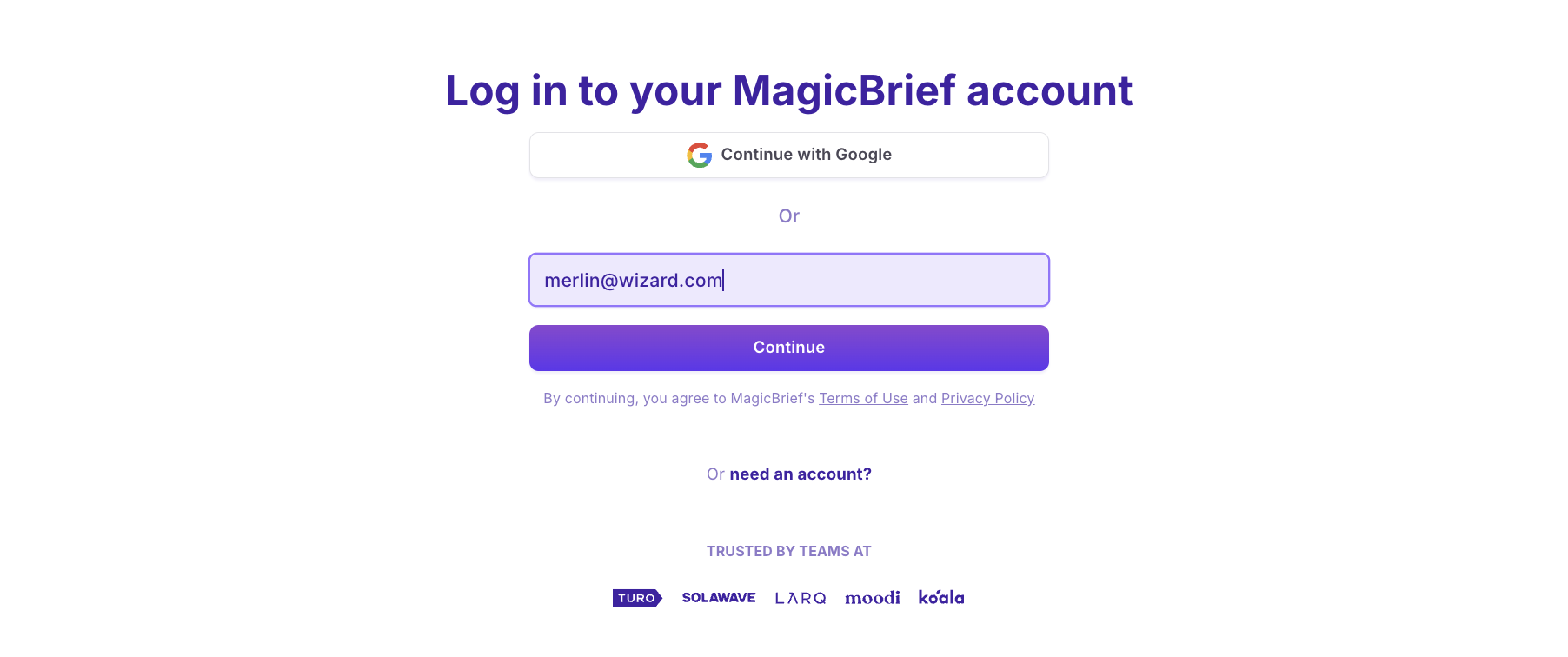
1. Create an Account
To get started with a MagicBrief account, request a demo HERE
If you have already spoken to a member of our team, they will provide you with a link to register your account
2. Connect an Ad Account
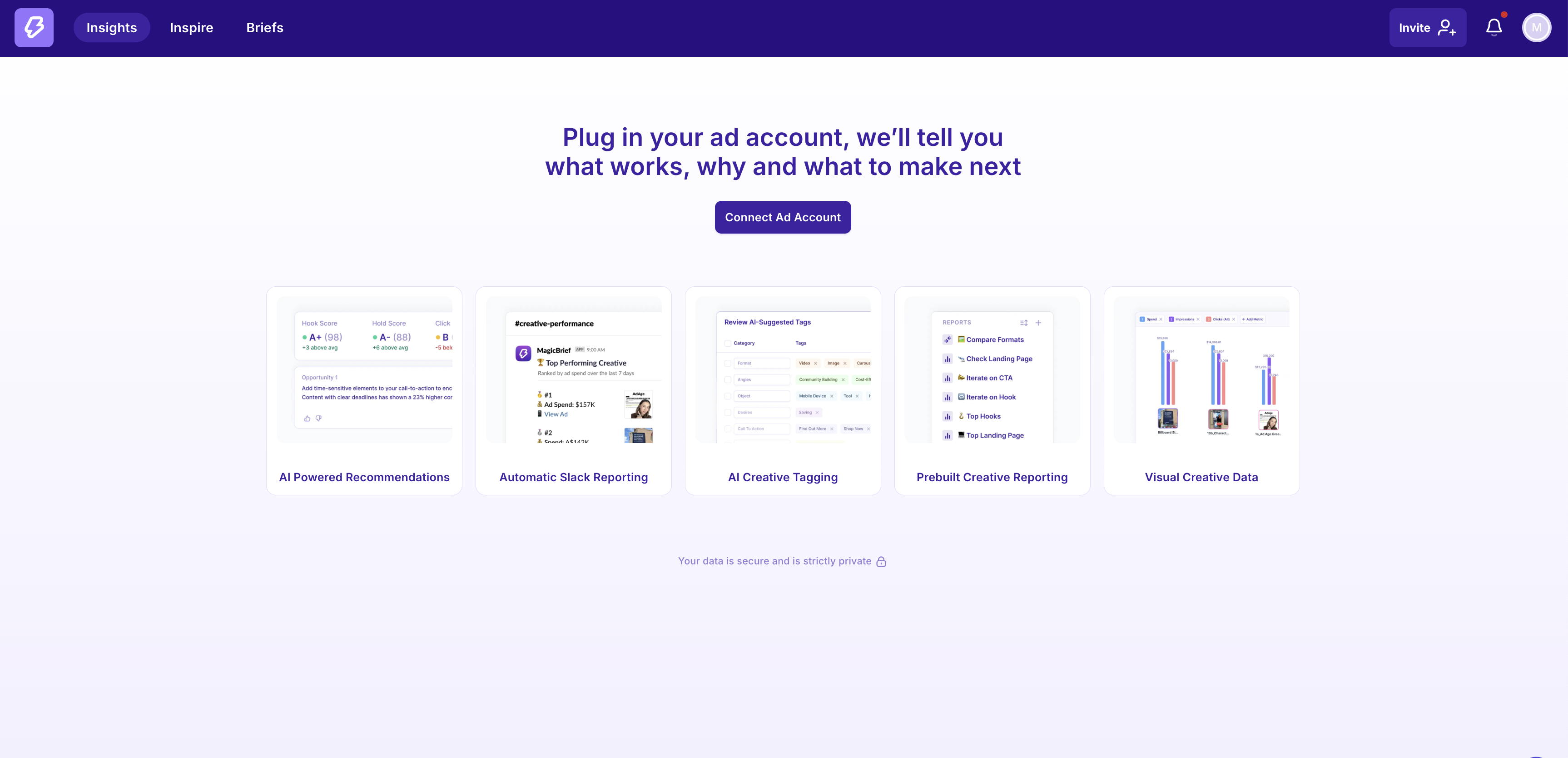
Connect your ad account to get a real time view of which ads are working and why.
Click “Insights” in the top panel and select “Connect Ad Account”
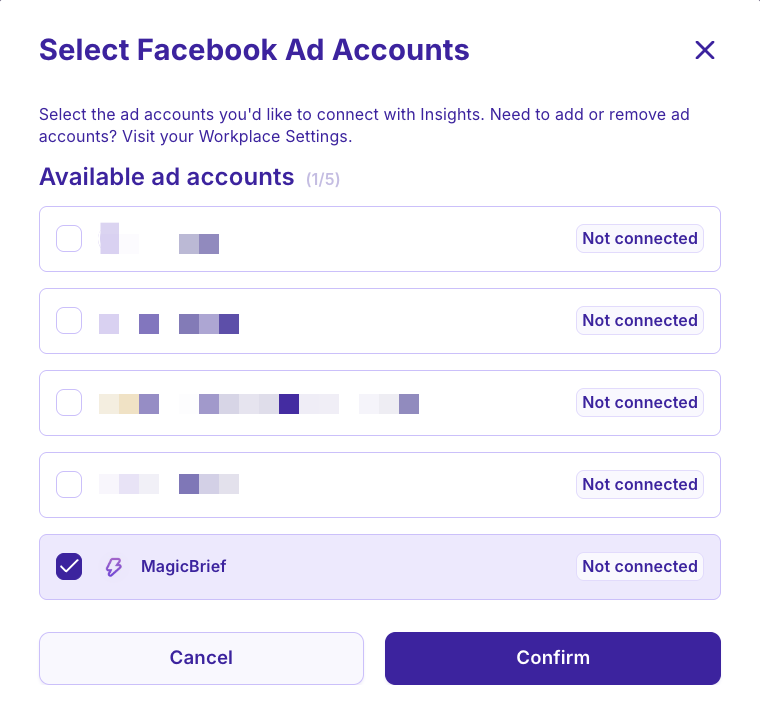
Select the ad account you wish to analyse on MagicBrief.
2. Set Up Automated Slack Summaries
Use our Slackbot to send automated performance updates directly to your Slack workspace - perfect for teams using Slack.
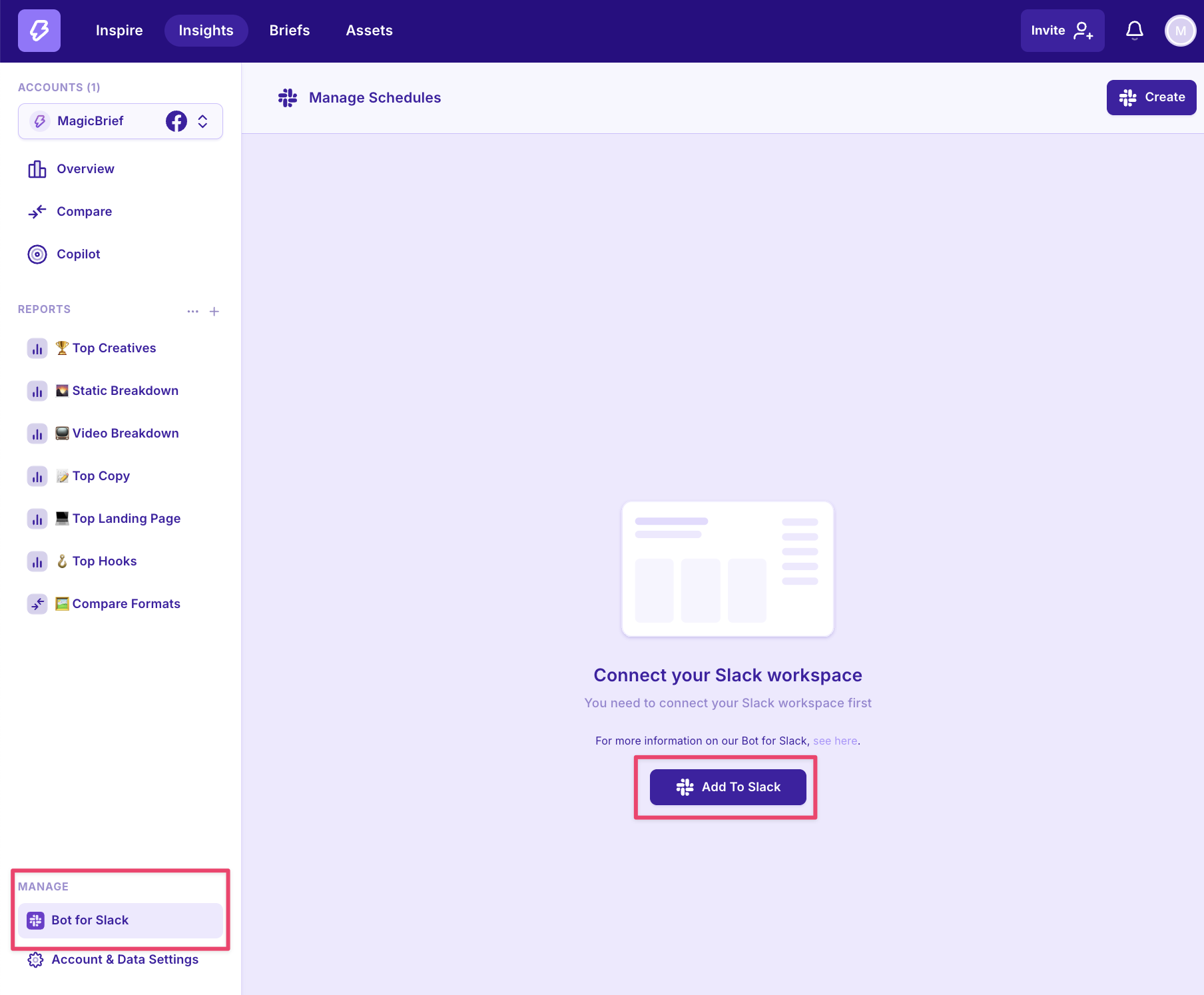
In the bottom left panel of Insights, select “Bot for Slack” and click “Add to Slack”
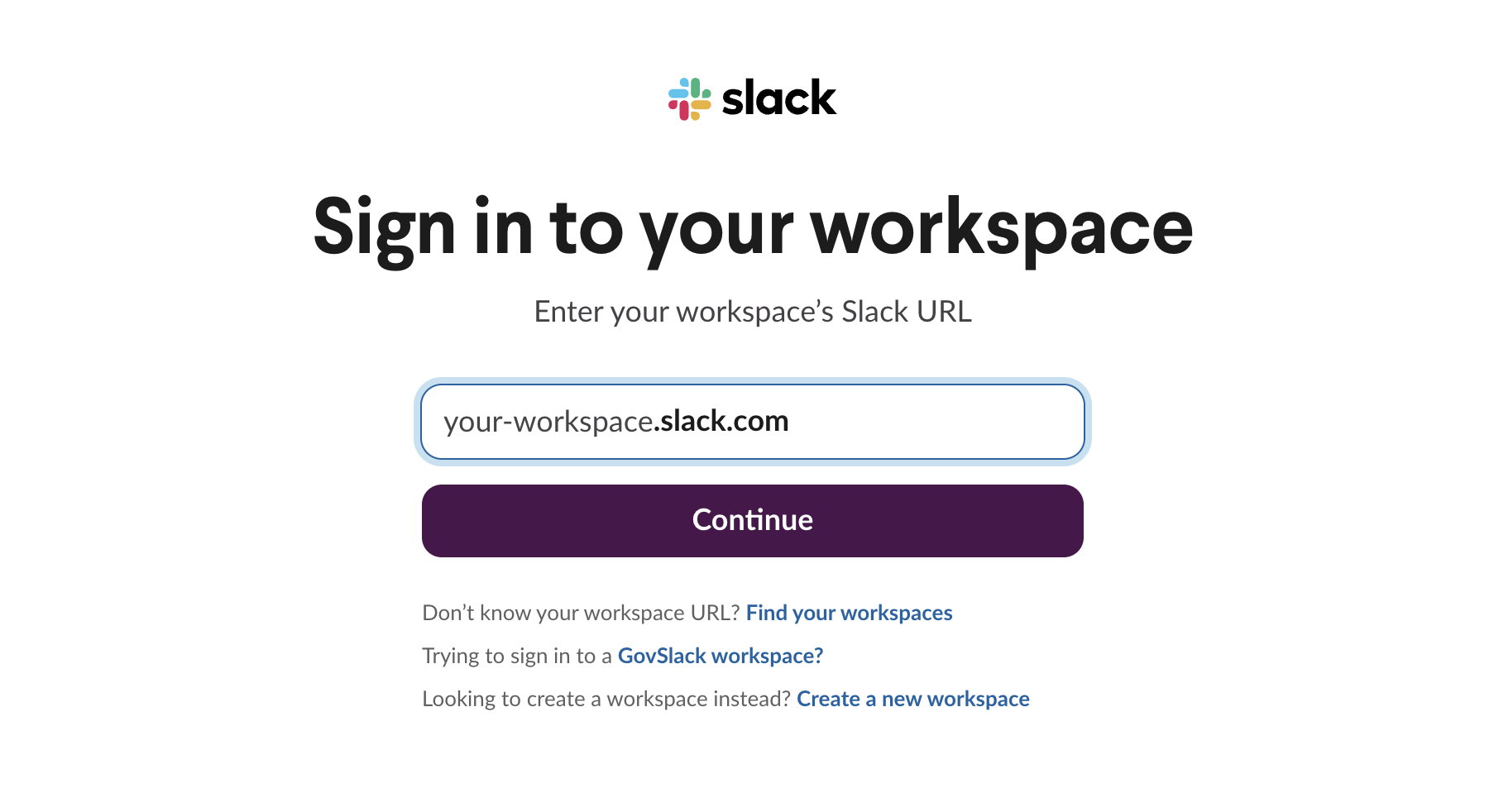
Follow the prompts to login and connect to your Slack workspace.
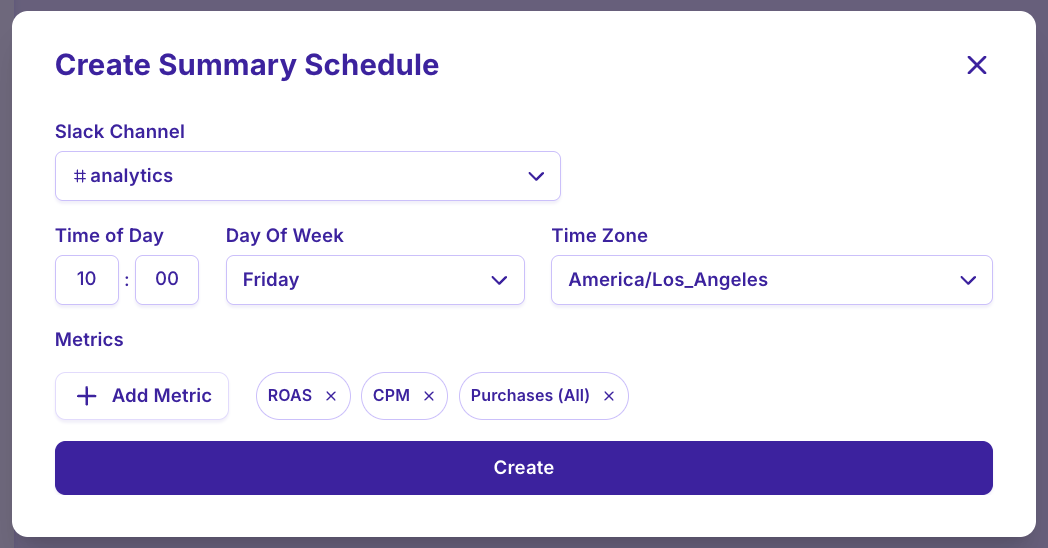
Set up a weekly metrics update for the target metrics in your ad account
3. Invite Team Members
Click the “Invite” button in the top panel.
Copy and share your invite link with team members or add them directly via email.

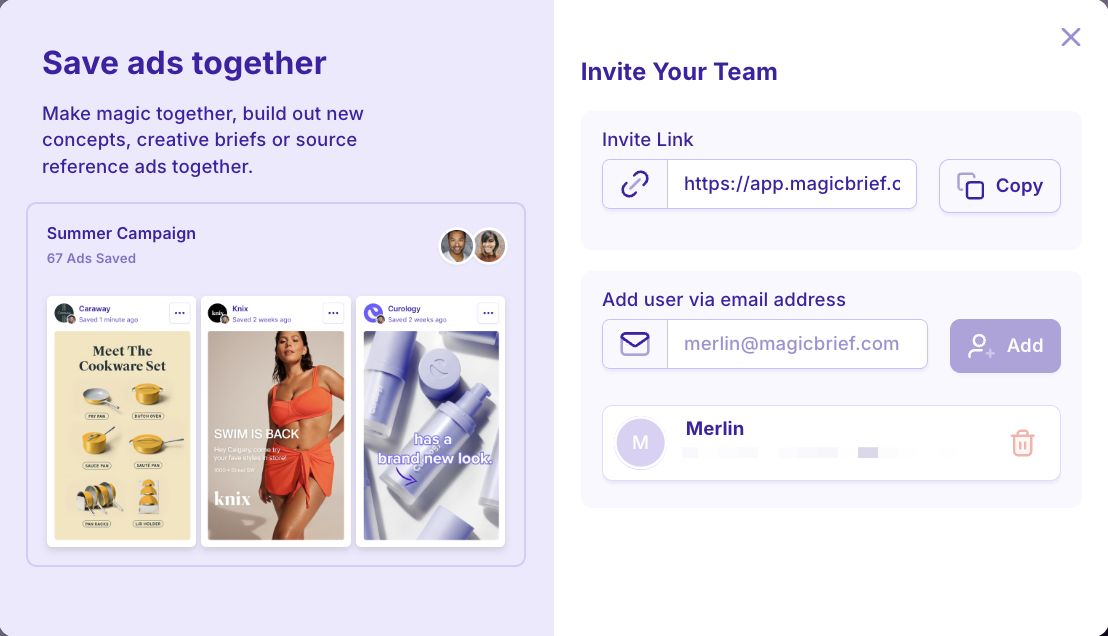
Every workspace has unlimited seats so add as many team members as you want!
4. Add Guest Users
Guest users can be added on an ad account by ad account basis - this is particularly helpful for agencies who want to add clients into their MagicBrief workspace without them being able to see other clients' ad data inside the account.
In Insights, select and enter the Ad Account you want that user to be added to (click the top left and check you're in the correct account).

Head into Ad Account Settings (bottom left) and toggle to 'Manage Guest Users' in the top bar.
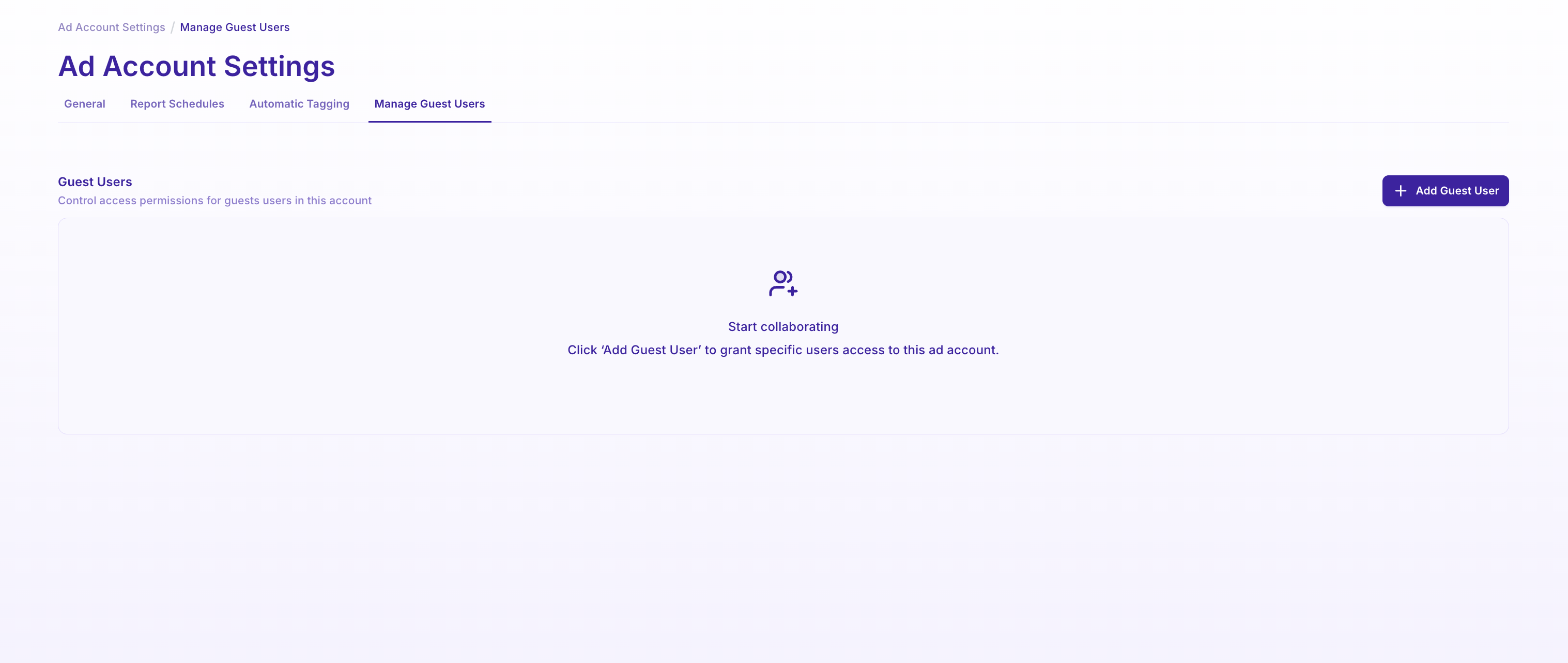
Click '+ Add Guest User' to invite that member who will be prompted to create a MagicBrief account.
Once their account is created - navigate back to Ad Account Settings > [+ Add Guest User].
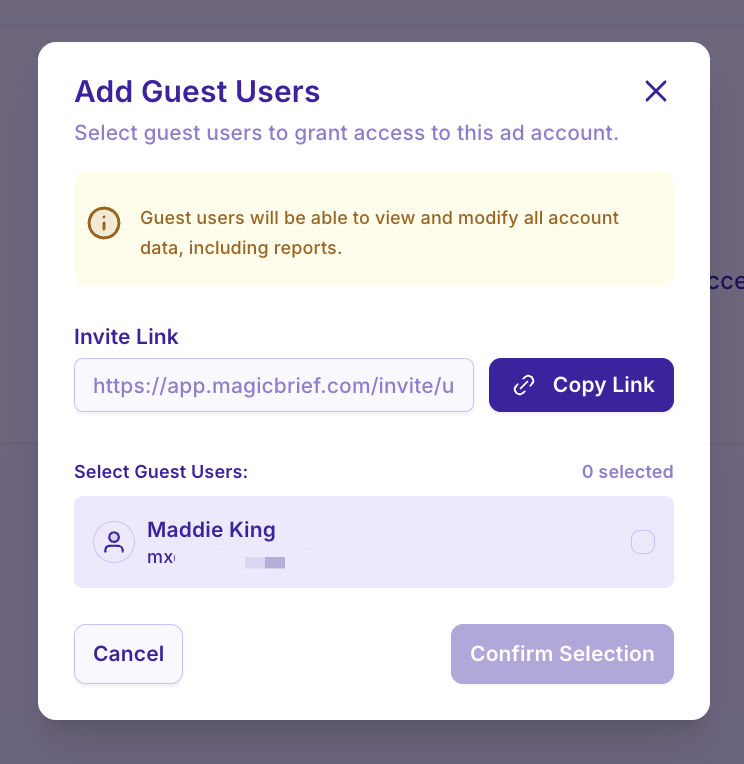
Select the user/s and confirm to add them to that ad account.
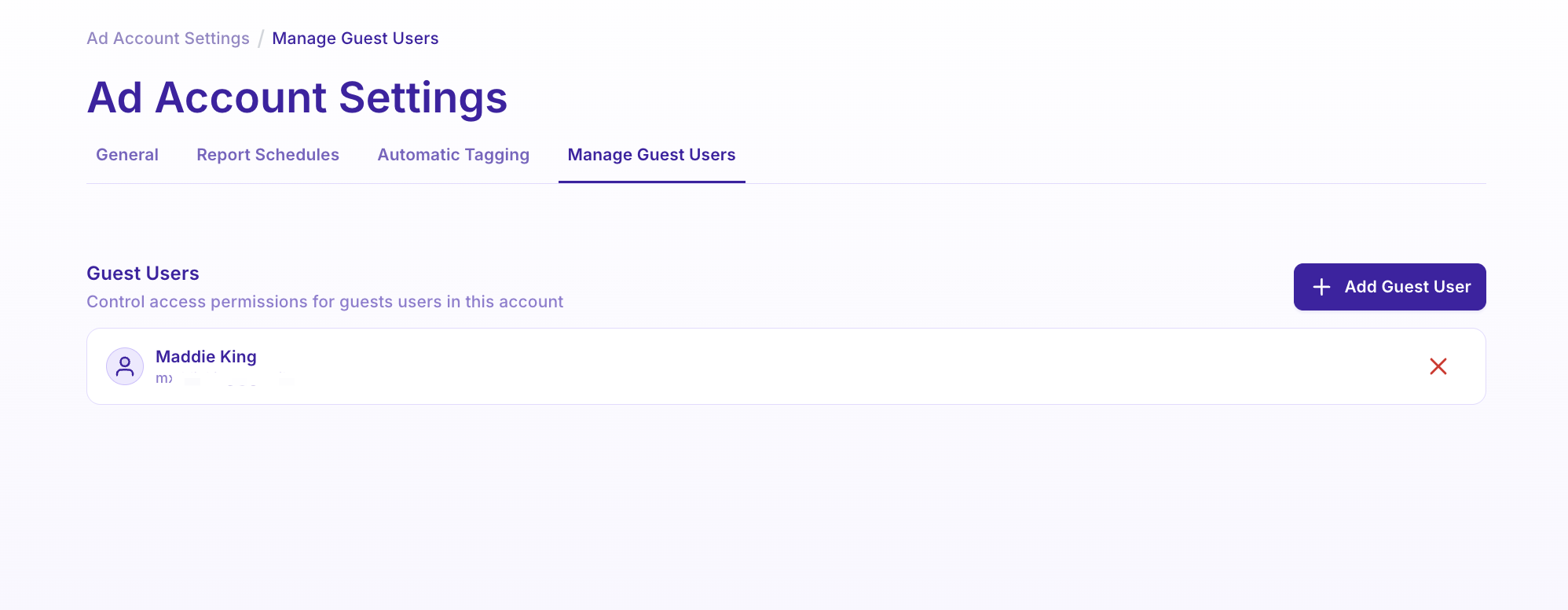
You can now see their account in the Manage Guest Users settings and remove them at any time
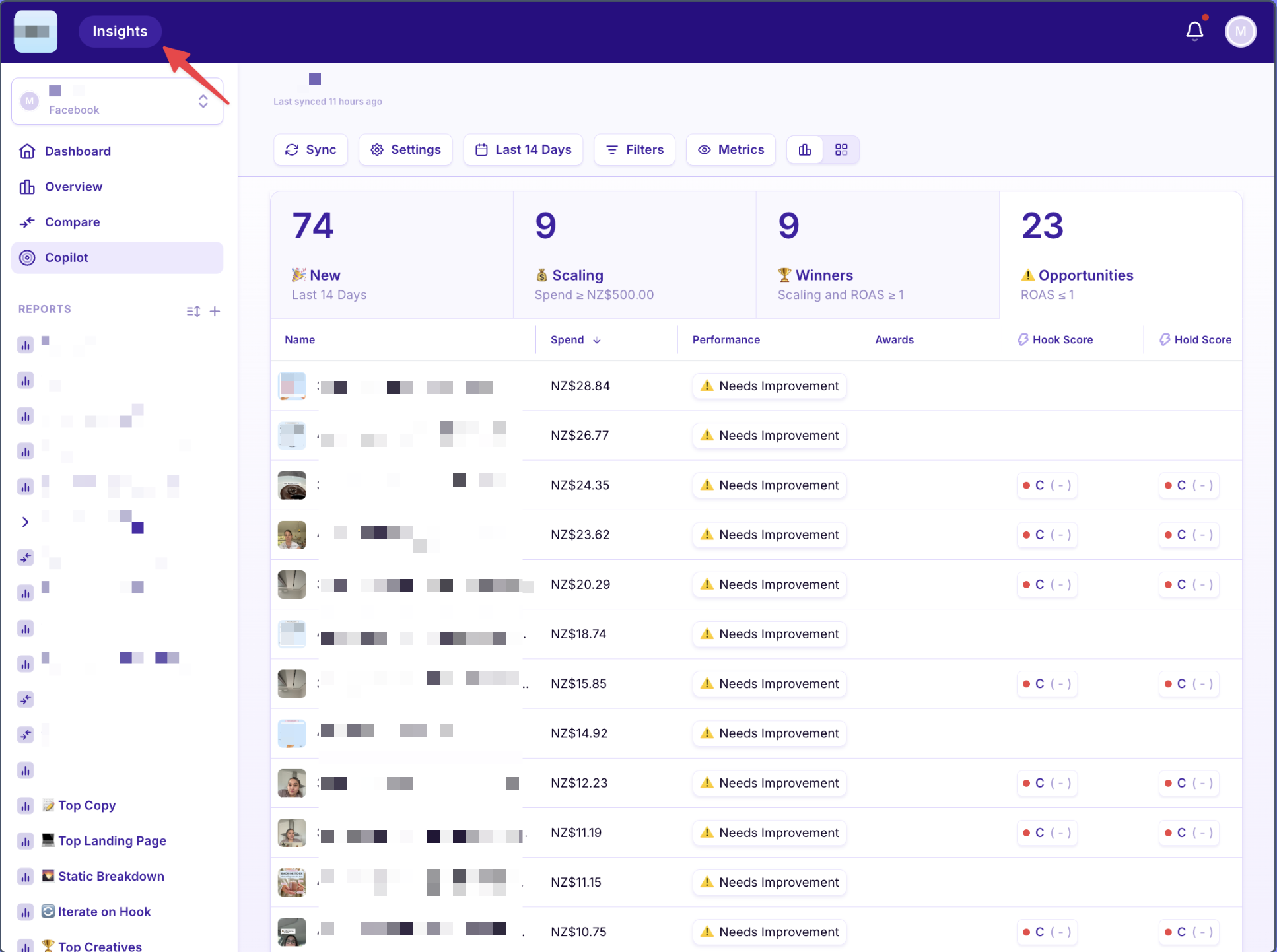
This is the Insights only view that Guest users will receive:
5. Follow Competitor / Reference Brands
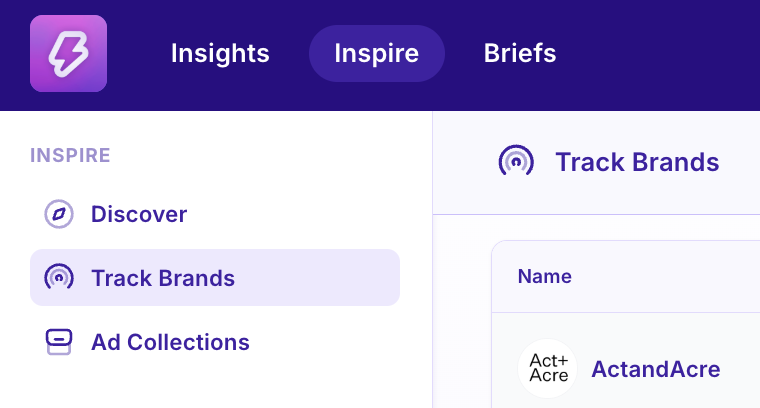
Navigate to "Track Brands" in the left side panel of Inspire.
Search and select the brand you’d like to follow.
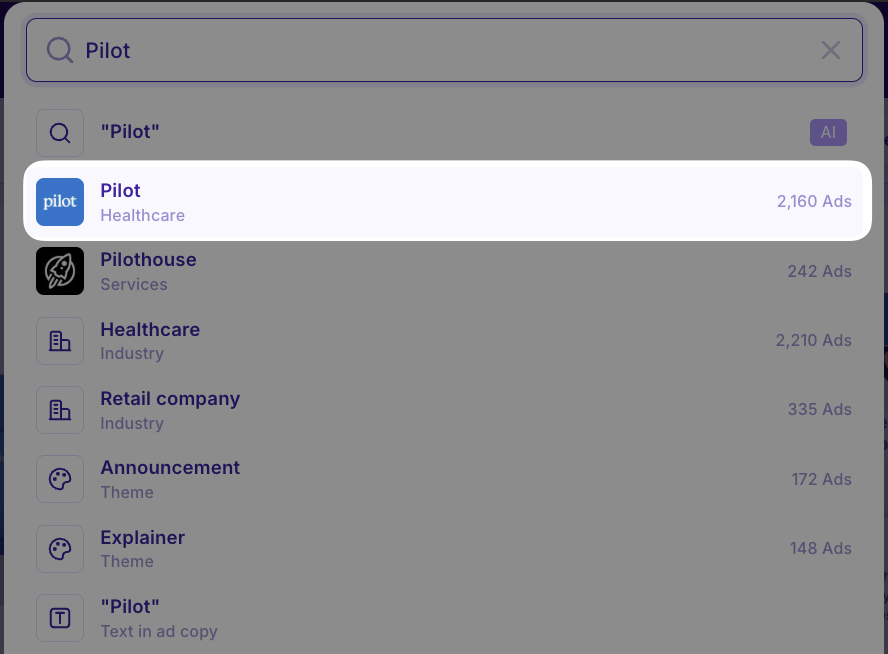
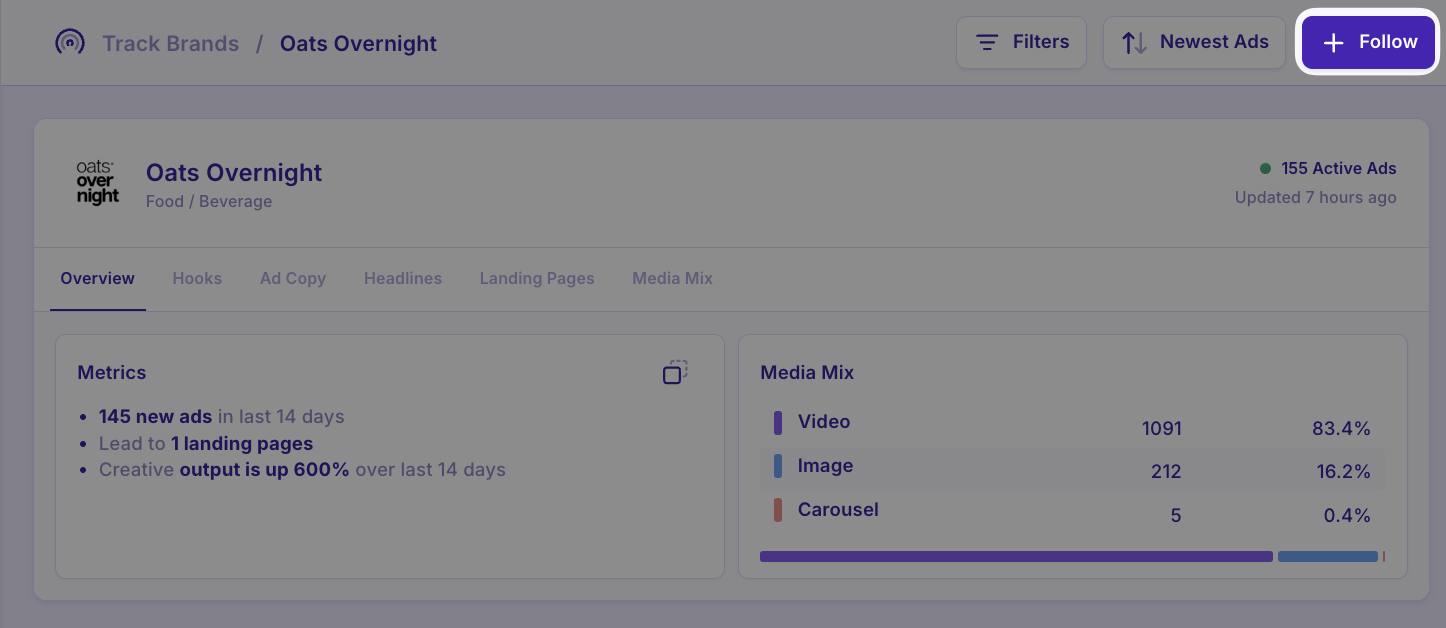
Then click “View Brand” in the top right

Click “Follow” to add them to your tracked brands list.
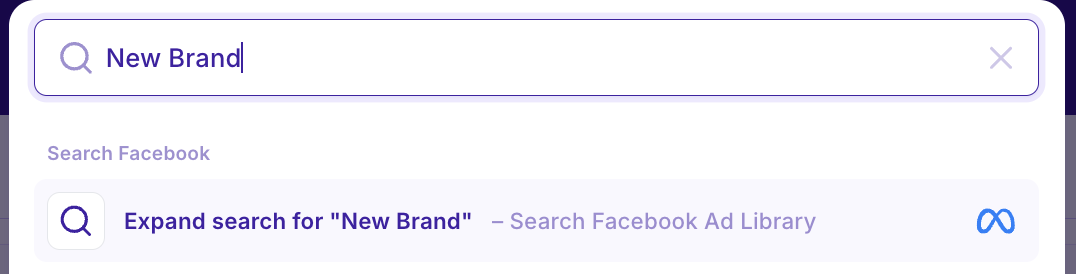
If a brand is not currently being tracked in MagicBrief, click to expand your search to FaceBook Ad Library and we can start tracking the brand from that point onwards. New brands may take up to 30mins to load in platform.
7. Download Chrome Extension
Our chrome extension allows you save ads from public ad libraries straight into your MagicBrief workspace.
Click HERE to download from the Chrome Store

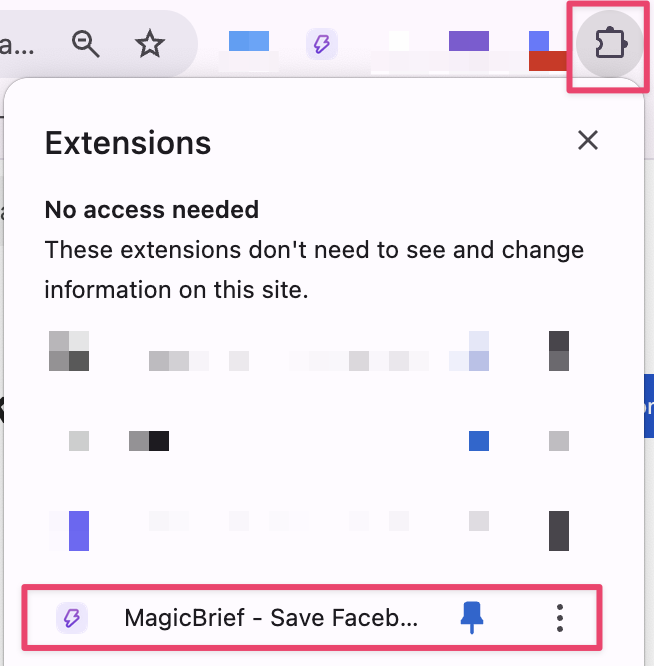
Once installed, click the puzzle icon in chrome and pin it to your Chrome menu.
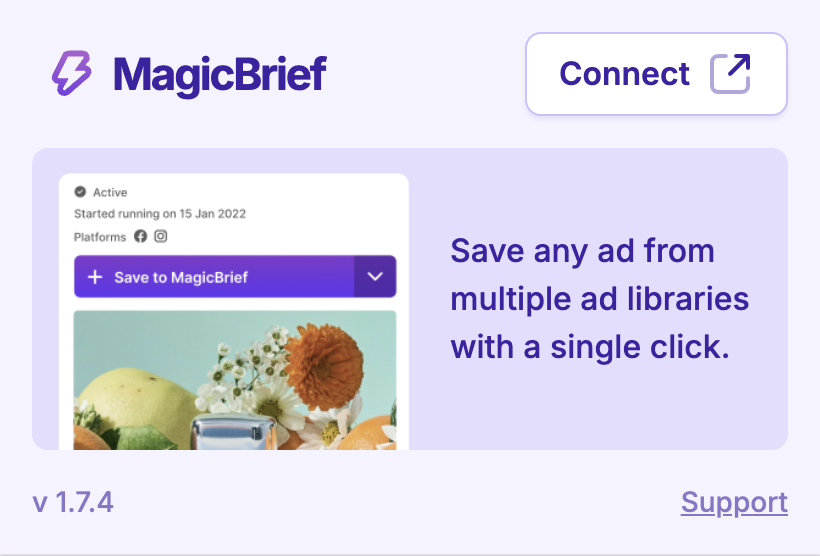
Click on the extension and click “Connect” to link it to your MagicBrief workspace.
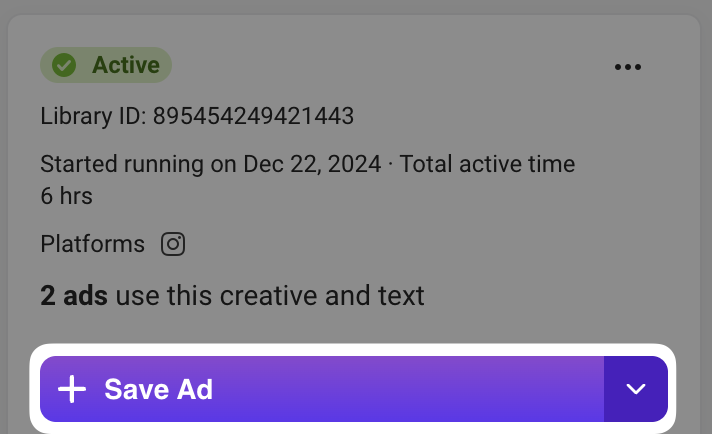
When browsing public ad libraries, you can click the “Save Ad” button to save it into a MagicBrief board, or straight into the “My Ads” section.