How to Rename Your Ad Accounts in MagicBrief
Last updated: July 29, 2025
Tired of trying to guess which ad account is which in your dropdown — especially when they’re all named something like 1234567890?
We’ve got you.
MagicBrief now lets you add custom aliases to your ad accounts so you can stay organized, save time, and avoid misclicks when switching between accounts.
Why Use Ad Account Aliases?
Adding an alias is especially helpful for:
Agencies managing multiple clients
(Label accounts by client name for quick access)Brands running region-based or campaign-specific accounts
(Ex: “Meta – US” vs “Meta – Canada”)Teams juggling several internal ad accounts
(Give each one a friendly name so there’s no confusion)
🛠 How to Set an Ad Account Alias
Click your profile icon in the bottom-left corner of MagicBrief
Select Settings
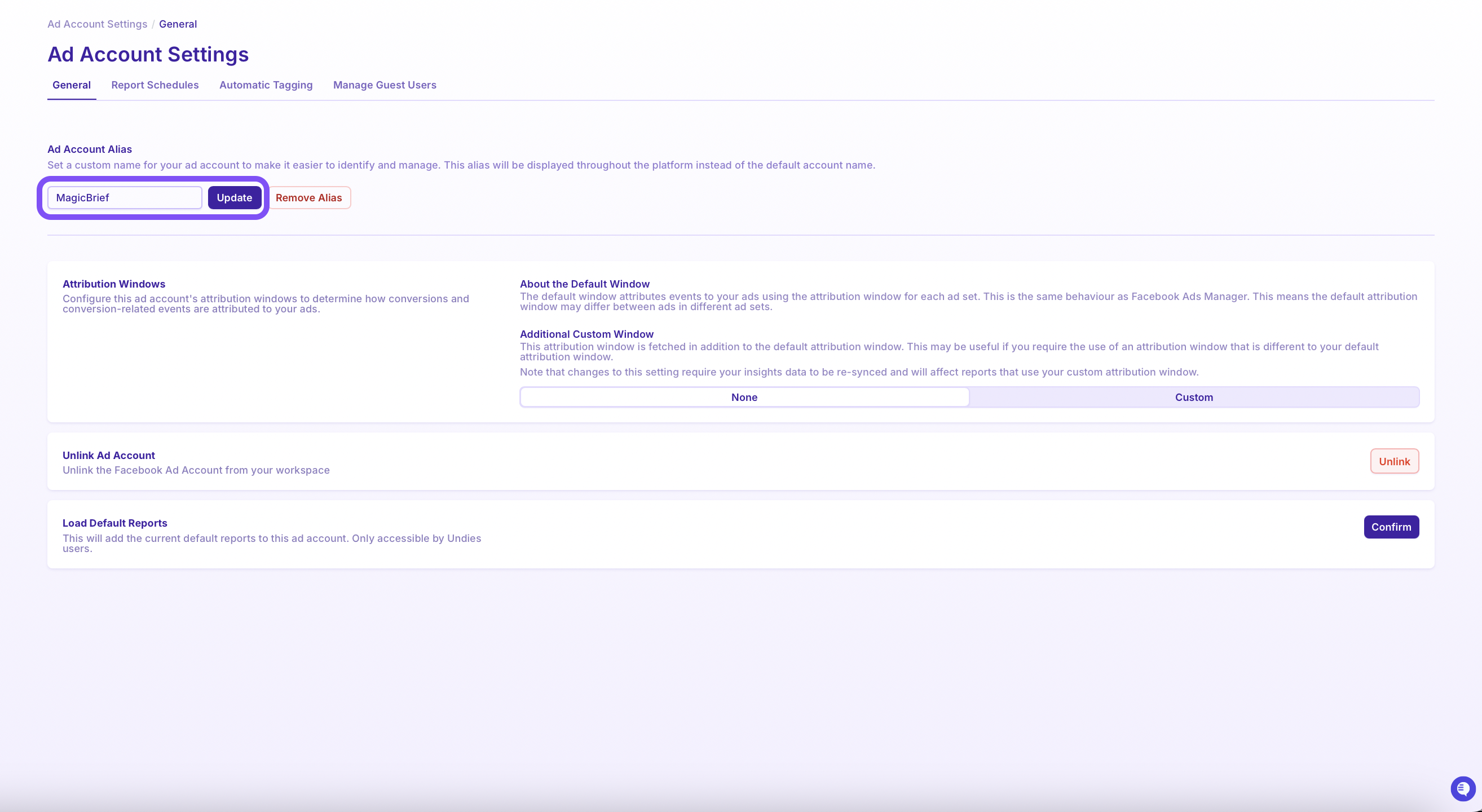
Under the General tab, scroll to the Ad Account Alias section
Type in your custom name (ex: “Motion – TikTok UK”)
Hit Update to save
That’s it! 🎉 The new alias will appear across your account dropdown menus, so everything stays crystal clear.
🔁 Can I change or remove an alias?
Absolutely. Just head back to the same section in Settings to edit or clear the alias anytime.
🧠 Pro Tip:
Keep a consistent naming convention for aliases across your team — something like:
[Brand or Client] – [Platform] – [Region]
This makes team-wide navigation smoother and reporting more aligned.